> ## Documentation Index
> Fetch the complete documentation index at: https://help.checkrmoney.com/llms.txt
> Use this file to discover all available pages before exploring further.

# MCP for AI Chats

> Connect your Checkr Money financial data to Claude, ChatGPT, and other chat assistants.

## What is MCP for AI Chats?

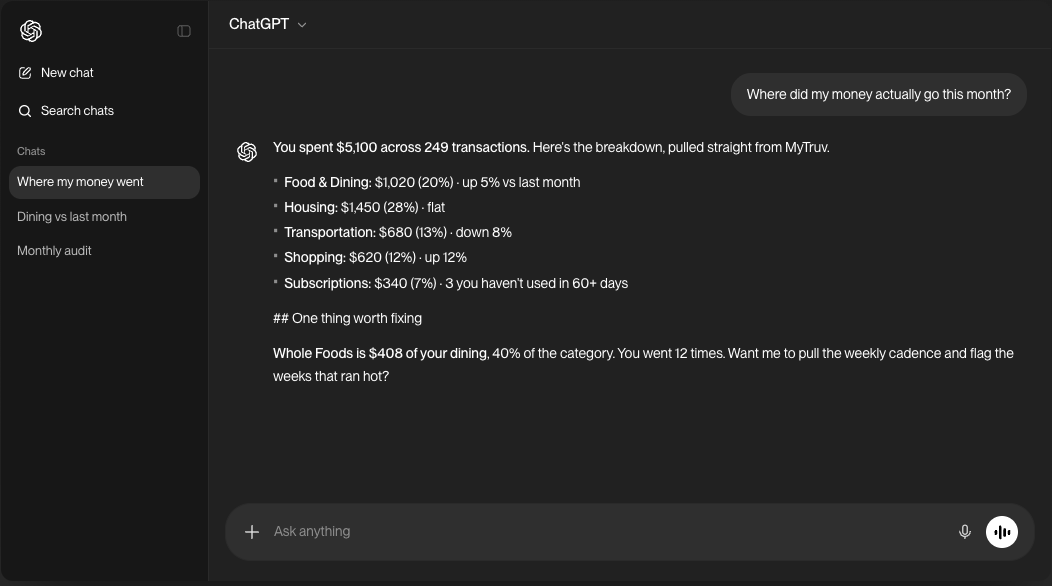
Checkr Money MCP plugs your financial data into the AI chat apps you already use - ask Claude or ChatGPT about your spending, balances, paychecks, and subscriptions in plain English and get answers grounded in your real accounts.

<Frame>
  <img src="https://mintcdn.com/checkrmoney/_HEqG_a_UJ268Pb6/images/product/mcp/chatgpt-chat.png?fit=max&auto=format&n=_HEqG_a_UJ268Pb6&q=85&s=73a375889ce9294f3c4ba6d8d0114f2e" alt="ChatGPT answering 'Where did my money actually go this month?' with a Checkr Money-sourced spending breakdown" width="1052" height="586" data-path="images/product/mcp/chatgpt-chat.png" />
</Frame>

<Info>
  Checkr Money MCP reads your data and, when you ask, updates how your transactions are labeled in Checkr Money: categories, merchant names, hidden and recurring flags, and merchant rules. It never changes anything at your bank or payroll provider and can't move money. Deleting a rule asks you to confirm first. See [Available tools](/mytruv-mcp/tools).
</Info>

<Tip>
  Already signed in to Checkr Money? Find this and the other AI integration links anytime from **Settings > AI Integrations** in the web app.
</Tip>

***

## Prerequisites

* A Checkr Money Pro subscription (monthly or annual) with at least one connected bank or payroll account
* A chat assistant that supports custom MCP connectors (Claude.ai, Claude Desktop, ChatGPT Plus/Pro/Business/Enterprise/Edu)

<Warning>
  Checkr Money MCP is only available on the Pro plan. [Upgrade to Pro](/billing/subscription-plans) to get started.
</Warning>

***

## How authentication works

The Checkr Money MCP server uses OAuth. No API keys or tokens to manage - just sign in with your Checkr Money account when prompted.

On first use, your browser opens automatically so you can authorize access. After that, your session stays active until you sign out.

The server URL is:

```
https://api.mytruv.com/mcp
```

***

## Pick your chat app

<div className="mytruv-card-grid">
  <a className="mytruv-card" href="/mytruv-mcp/setup/claude">
    <span className="mytruv-card__icon">
      <img src="https://mintcdn.com/checkrmoney/_HEqG_a_UJ268Pb6/images/logos/claude.svg?fit=max&auto=format&n=_HEqG_a_UJ268Pb6&q=85&s=0de76b75096714e81fd6af1dd42ca3fe" alt="" width="16" height="16" data-path="images/logos/claude.svg" />
    </span>

    <h3 className="mytruv-card__title">Claude.ai</h3>
    <p className="mytruv-card__body">Claude.ai and Claude Desktop via Connectors</p>

    <span className="mytruv-card__arrow">
      <svg width="16" height="16" viewBox="0 0 24 24" fill="none" stroke="currentColor" strokeWidth="2" strokeLinecap="round" strokeLinejoin="round">
        <path d="M7 17L17 7" />

        <path d="M8 7h9v9" />
      </svg>
    </span>
  </a>

  <a className="mytruv-card" href="/mytruv-mcp/setup/chatgpt">
    <span className="mytruv-card__icon">
      <img src="https://mintcdn.com/checkrmoney/_HEqG_a_UJ268Pb6/images/logos/chatgpt.svg?fit=max&auto=format&n=_HEqG_a_UJ268Pb6&q=85&s=002f224f1af89dcf33fcafa9412a014f" alt="" width="16" height="16" data-path="images/logos/chatgpt.svg" />
    </span>

    <h3 className="mytruv-card__title">ChatGPT</h3>
    <p className="mytruv-card__body">Custom connector in ChatGPT Settings</p>

    <span className="mytruv-card__arrow">
      <svg width="16" height="16" viewBox="0 0 24 24" fill="none" stroke="currentColor" strokeWidth="2" strokeLinecap="round" strokeLinejoin="round">
        <path d="M7 17L17 7" />

        <path d="M8 7h9v9" />
      </svg>
    </span>
  </a>
</div>

Using Claude Code, Codex, Cursor, or another agentic developer tool? See [MCP for AI Agents](/mytruv-mcp/agents-overview).

***

## Try it out

Once your chat app is connected, the fastest way to see MCP in action is to copy a prompt:

<div className="mytruv-card-grid">
  <a className="mytruv-card" href="/mytruv-mcp/prompts">
    <span className="mytruv-card__icon">
      <svg viewBox="0 0 24 24" fill="none" stroke="currentColor" strokeWidth="1.75" strokeLinecap="round" strokeLinejoin="round">
        <path d="M12 3l1.5 5L18 9l-4.5 1L12 15l-1.5-5L6 9l4.5-1z" />

        <path d="M19 12l.7 2.3L22 15l-2.3.7L19 18l-.7-2.3L16 15l2.3-.7z" />

        <path d="M5 16l.5 1.5L7 18l-1.5.5L5 20l-.5-1.5L3 18l1.5-.5z" />
      </svg>
    </span>

    <h3 className="mytruv-card__title">Try these prompts</h3>
    <p className="mytruv-card__body">Ready-to-use questions to ask Claude or ChatGPT.</p>

    <span className="mytruv-card__arrow">
      <svg width="16" height="16" viewBox="0 0 24 24" fill="none" stroke="currentColor" strokeWidth="2" strokeLinecap="round" strokeLinejoin="round">
        <path d="M7 17L17 7" />

        <path d="M8 7h9v9" />
      </svg>
    </span>
  </a>
</div>

***

## Limitations

* Pro plan required - Checkr Money MCP is not available on the free plan
* Changes stay inside Checkr Money - the write tools only edit your own transaction labels and merchant rules, never your accounts at the bank


This documentation is built and hosted on [Mintlify](https://mintlify.com), a developer documentation platform.